Robin is in Beta
Robin is currently in Beta, and access is limited to select users only. To request to join the beta testing group, please complete the online application.
1) Requirements
Browser: Google Chrome (latest) or Microsoft Edge (Chromium-based)
Account: Any account allowed by your organization to install extensions
Permissions: You may need admin approval in managed (enterprise) environments
2) Install the Extension
Open the Chrome Web Store using this link:
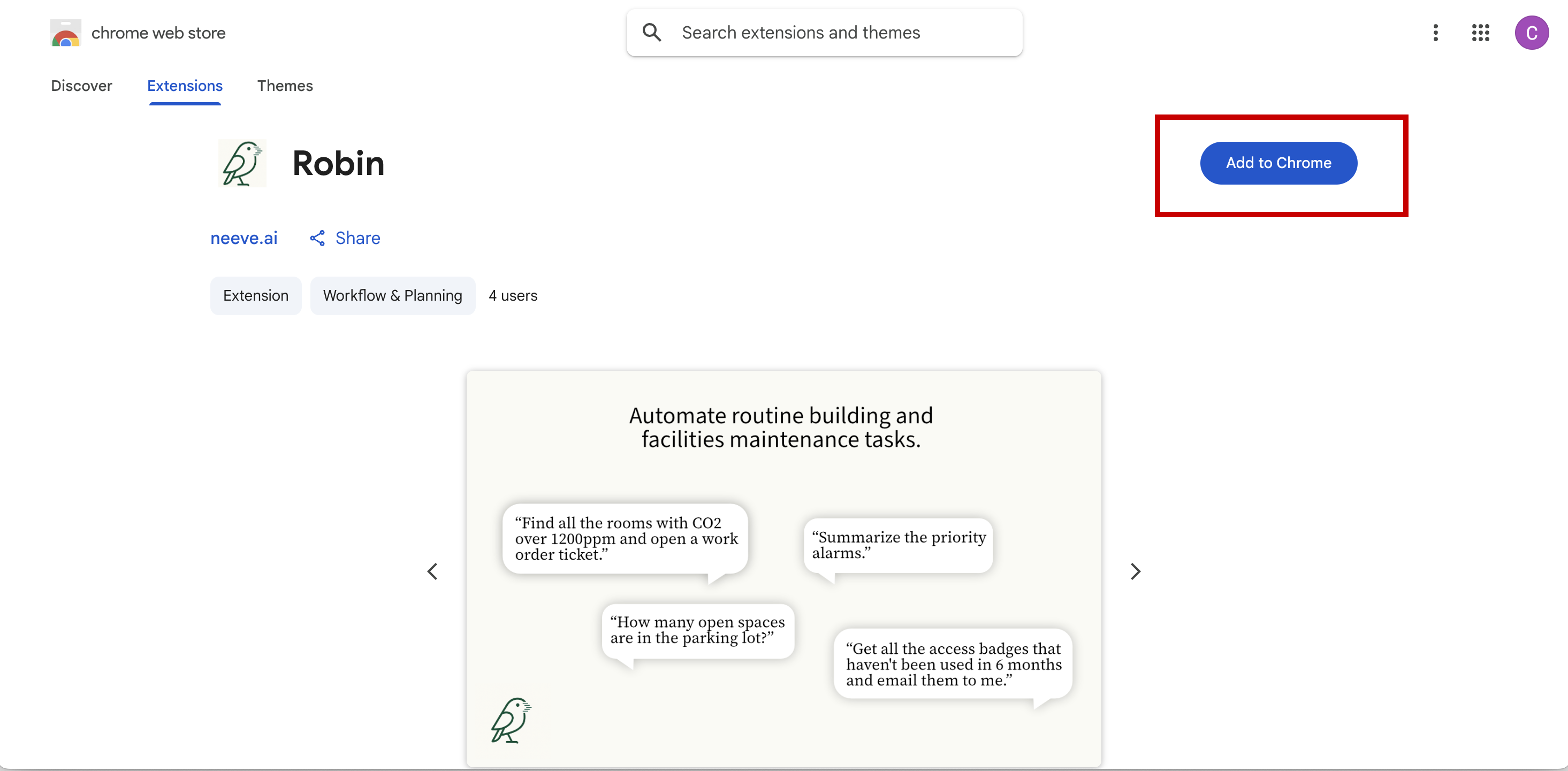
➡️ Install Robin from the Chrome Web StoreClick Add to Chrome.
In the confirmation dialog, select Add extension.
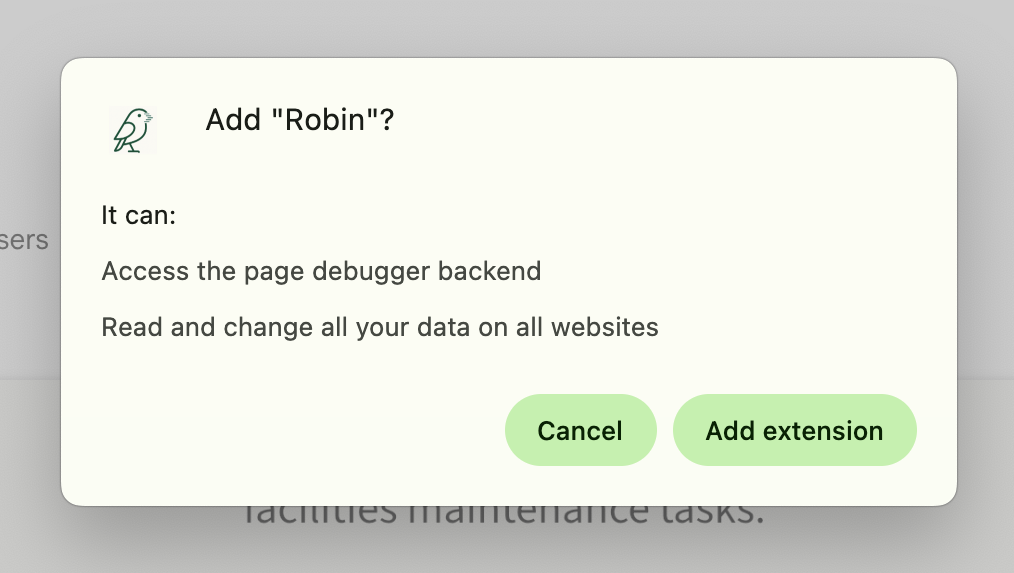
In this dialog you will be asked to grant access to Robin to do the following:
Read and change all your data on all websites. - This is necessary for Robin to view the content of web pages and provide you with analysis and insights. You control what pages Robin can access, and the plugin displays what page it is connected to at all times. You can always close Robin - it cannot access page content when it is closed.
Access to the page debugger backend. - This is a feature of Chrome/Edge that allows an extension to navigate a page on your behalf. Robin needs this access so it can interact with the pages. Whenever debug is enabled, there will be a banner in Chrome. As with the other permissions, you always close Robin - it cannot access page content when it is closed.Wait a few seconds while Chrome installs Robin. You’ll see a confirmation toast when it’s ready.
Edge users: Open the same link in Microsoft Edge. When prompted, click Allow extensions from other stores, then Get, and confirm to add the extension.
3) Pin the Extension (so it’s easy to access)
Pinning keeps Robin’s icon visible next to the address bar.
In Chrome
Click the Extensions icon (puzzle piece) at the top-right of Chrome.

Find Robin in the list.
Click the pin icon, it should change to having a slash through it. Robin’s logo will now appear in the toolbar.
.png)
In Microsoft Edge
Click the Extensions icon next to the address bar.
Find Robin and choose Show in toolbar (or pin).
4) Launch Robin
Click the Robin extension icon in the toolbar.
.png)
Sign in if prompted (or follow any on-screen setup instructions from your organization).
Robin is now available to assist with your workflows in the browser.
5) About the “Robin is debugging the browser” Header
When Robin is active, you may see a header/banner stating that “Robin is debugging the browser.”
What this means:
The header indicates that Robin has read access and control in the current browser session so it can automate approved tasks (e.g., reading on-screen data, clicking buttons, filling forms) on your behalf.
This is expected behavior and helps ensure transparency that an automation agent is active.
Important:
If you dismiss this header, the extension will be disconnected for that session.
To continue using Robin after dismissing the header, you must click the refresh icon (ICON) in the extension to reconnect to the window. Then click the Robin icon to re-activate.
Tip: If you don’t want to lose your tabs, consider bookmarking open pages or using Chrome’s Save Group feature before closing and reopening.
6) Quick Reference
Install: Chrome Web Store – Robin
Pin: Extensions (puzzle piece) → Pin Robin
Reconnect if disconnected: Close all browser windows → reopen → click Robin icon
© Neeve. All rights reserved.