Launch Plugin
Click the Robin icon in your Chrome or Edge toolbar. If you do not see the icon, go to Window→Extensions and click the pin icon so it is pinned to your toolbar.
When you launch the plugin, a side panel will open. First-time users will be prompted to log in.
Attaching the Current Tab
Once the panel is open, you must attach it to the current tab for it to work. Click the “Connect Tab” button at the top of the plugin.
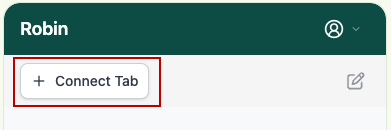
You should see two indicators that the plugin is attached correctly:
A header will open across the entire browser that states “Robin” started debugging this browser. Do not close this, or functionality will be disabled. This is necessary for Robin to control the current tab.
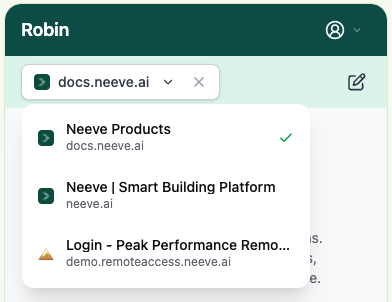
The plugin will show the icon and URL of the tab to which is connected.
As you change tabs Robin will always connect to the current tab. If you wish to disconnect Robin so it cannot see your current tab, hit the X icon on the same drop-down where you connected to the tab and it will disconnect. If you want to change the tab you can click the drop-down and choose a different tab.
The debugging header appears in all tabs
The header stating “Robin” started debugging this browser will appear in all tabs, regardless of whether the plugin is connected to that tab or not. This is a security feature of Chrome. Do not close this or click “Cancel” or the Robin plugin will be disconnected.
Starting a New Conversation
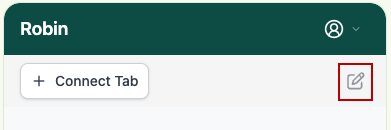
The plugin retains the conversation history for the current session. If you want to start a new conversation and clear the current history, you can click the pencil/square icon in the plugin header. This will clear the current conversation thread and start a new one.
Sample Prompts for Robin
Here are some example prompts to help you get started using Robin effectively. These examples show the kinds of tasks Robin can assist with across your building systems, data analysis, and troubleshooting workflows.
Data Exploration & Insight
“Generate a CSV file based on a table of data.”
“Summarize the energy usage trends for Building A over the past month.”
“What are the top 5 pieces of equipment with the highest runtime hours this week?”
“Find anomalies in the HVAC schedule for Floor 3.”
“Summarize the 'critical' events in my FDD.”
“Compare today’s chiller performance to the same day last week.”
Troubleshooting & Diagnostics
“Why might AHU-4 be running outside of its scheduled hours?”
“List any zones where the supply air temperature doesn’t match the setpoint.”
“Check if there are any BACnet devices reporting communication faults.”
“Review alarms from the last 24 hours and group them by root cause.”
“Show me which VAV boxes are consistently reporting low airflow.”
Reporting & Documentation
“Generate a summary of all open maintenance tickets by building.”
“Extract a list of recent work orders related to HVAC controls.”
“Create a report of all equipment that missed preventive maintenance this month.”
“Summarize commissioning issues identified during system startup.”
“List all points labeled ‘manual override’ in Tridium.”
Cross-Application Workflows
“Pull all active alarms from Tridium and log them into the maintenance tracker.”
“Add a new ticket in the work order system for any equipment in alarm state.”
“Summarize daily energy data from Niagara and export it to Excel.”
“Compare chiller efficiency readings from multiple dashboards.”
“Update meter data into the building performance spreadsheet.”
Optimization & Strategy
“Identify which AHUs have the largest gap between expected and actual efficiency.”
“Suggest areas where energy use could be reduced during off-hours.”
“Highlight recurring faults that may indicate poor control logic.”
“Find opportunities for sensor recalibration or data cleanup.”
“Explain how system changes this week affected total kWh usage.”
Getting Help from Robin
“Explain how you detected these anomalies.”
“Show me how you inferred this root cause.”
“Summarize this alarm trend in plain English.”
“Can you clarify what this variable means in Tridium?”
💭 Tip: You can use natural language — just describe what you want to know or do. Robin understands building operations terminology and can work across your connected systems to surface insights or automate routine tasks.