This article explains how to log in to Neeve for the first time and set up multifactor authentication (MFA) if configured for your organization.
Neeve administrators receive a username and password from the Neeve Support Team. (If you’re an administrator and don’t have one, email us at support@neeve.ai.)
Other users, such as technicians or third-party vendors, get a username and initial password from the company’s Neeve administrator.
Lockout policy
To protect your security, too many failed login attempts will temporarily lock you out of the portal. After 3 failed attempts, access will be restricted for 30 minutes. If you reach 5 failed attempts, the lockout extends to 24 hours. If you need access restored before this period ends, please contact Customer Support at support@neeve.ai.
See instructions below for resetting your password, when needed.
Log in with Neeve credentials
After you’ve received your username and password from Neeve or your administrator, follow these steps to log in:
Navigate to your company’s domain: https://<customer-name>.app.neeve.ai
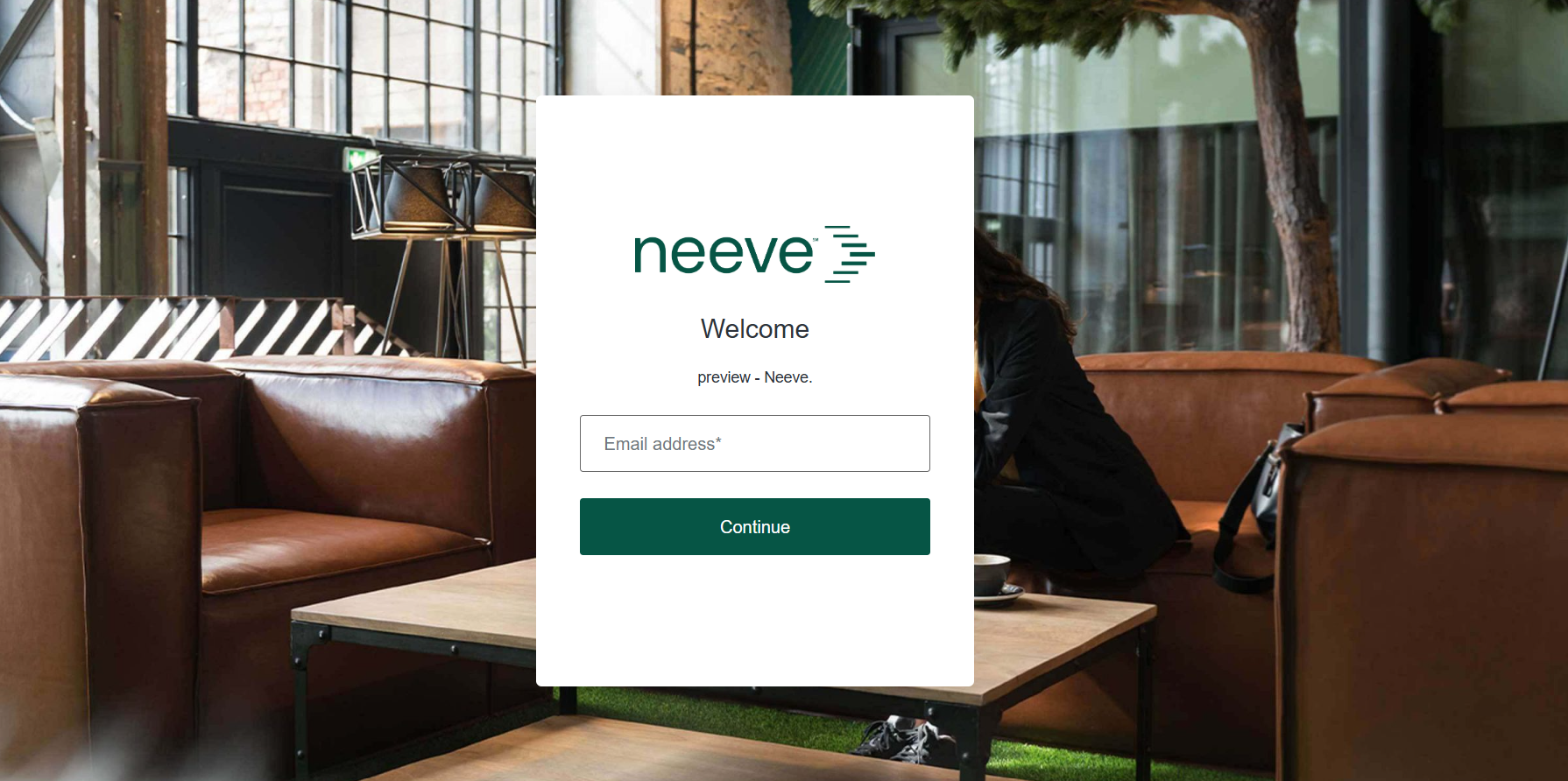
On the login page, enter your username or email and password.
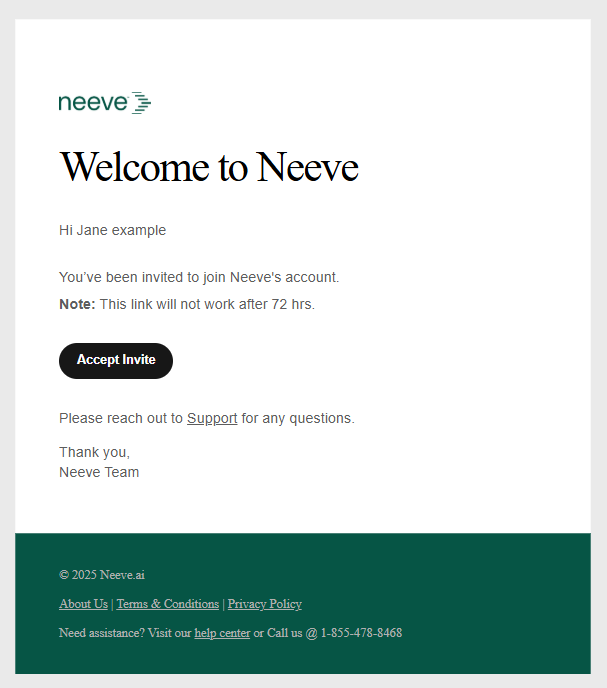
If this is your first time logging in, you will be prompted to verify your email before proceeding. When you receive the verification email, click Accept invite.
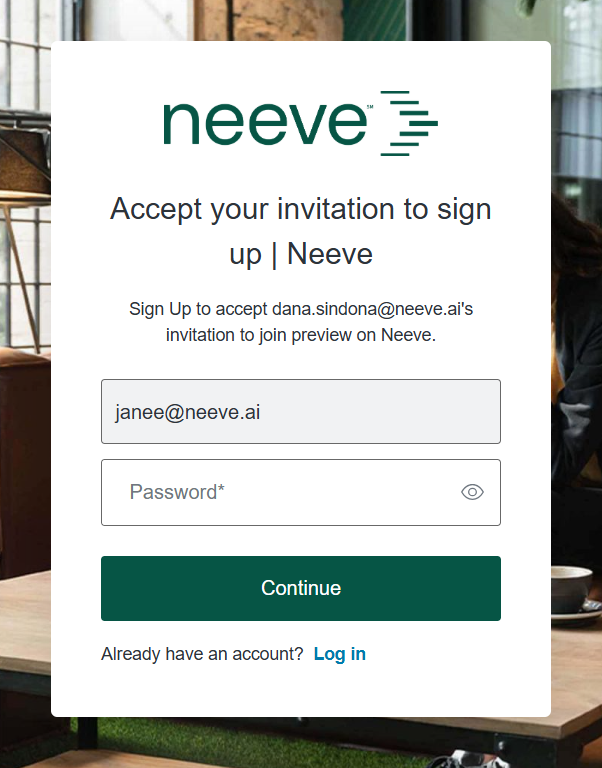
After successful email verification, you’ll be prompted to set a password. Enter a new password and confirm it.
Once the new password is set successfully, a confirmation message will appear.
Note
Resetting your password only affects your access to the Neeve Portal—it won’t change your device access passwords. Neeve passwords expire every 90 days. You'll see a notification in your user profile 10 days before the password expires.
Return to the login page, enter your username or email and new password, and select Continue to log in to Neeve.
Log in with single sign-on (SSO) credentials
If your account has been set up for single sign-on, follow these steps to log in. You will see a different sign-on prompt, depending on your company's external identity provider.
Navigate to your company’s domain name: https://<customer-name>.app.neeve.ai
On the login page, select Continue with [your provider] and follow the prompts.
If this is your first time logging in, you will be prompted to verify your email address. When you receive the verification email, click Accept invite.
After successful verification, you’ll be logged in to the Neeve Portal.
Log in with multifactor authentication (MFA)
If your company uses multifactor authentication (MFA), follow these additional steps to log in for the first time:
Enabling multifactor authentication
To enable MFA for your organization, contact Neeve Support: support@neeve.ai
Log in using your Neeve credentials or SSO and verify your email address, if it is your first login.
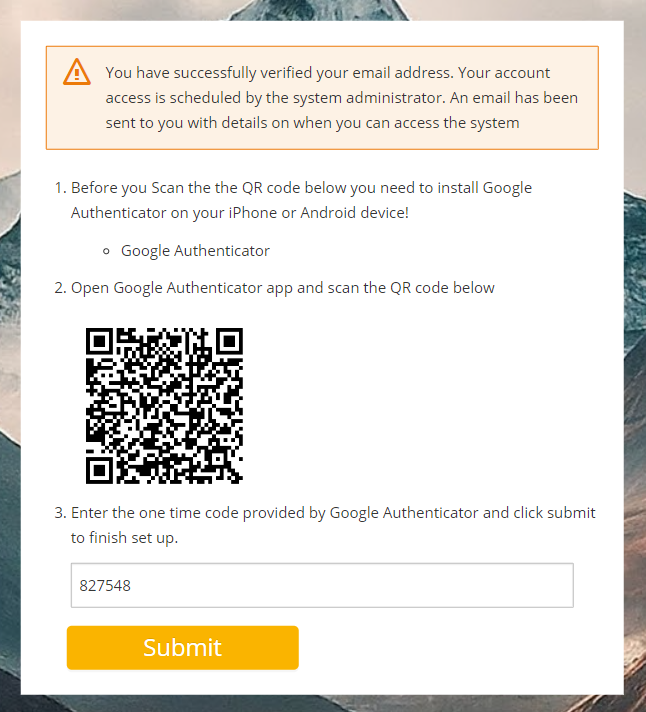
When you attempt to log in to Neeve, the Mobile Authenticator Setup page opens so you can set up MFA.
.png)
Download Google Authenticator (or another supported app) to your phone. Our example uses Google Authenticator on an iPhone.
Open the app's Authenticator Setup screen and select Begin Setup.
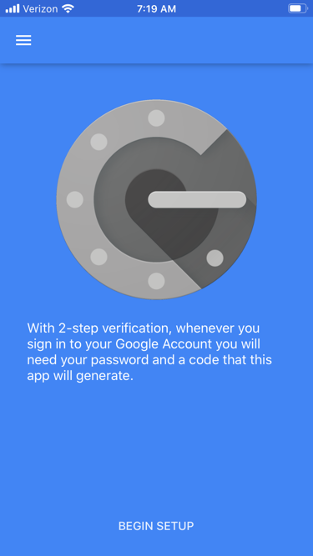
Select Scan barcode and scan the barcode on the Mobile Authenticator Setup page.
Authenticator displays a code for one-time use. Enter the code into the Mobile Authenticator Setup page. The code changes every 15 seconds, so enter it promptly.
After successfully setting up MFA, log in to Neeve again using your Neeve credentials or SSO. Then, type the code from your Authenticator app.
Select Continue.
Future logins will require you to enter the code from your Authenticator app.
Launcher page
The Launcher page is the landing page you will see after you log in to the Neeve Portal. On the Launcher page, you can review your devices in tile, list, or hierarchy view. The device icons and table columns (list view) show device type and status (e.g., a green check for connected), and also the device location (site). Select the star next to a device to add it to your favorites list.

To launch a connection, select a tile from the Tiles view, or, from the List view, select Launch in the Action column. See Accessing your endpoints for detailed instructions.
(1).png)
Reset your password
To reset your Neeve account password:
Navigate to your company’s domain name: https://<customer-name>.app.neeve.ai
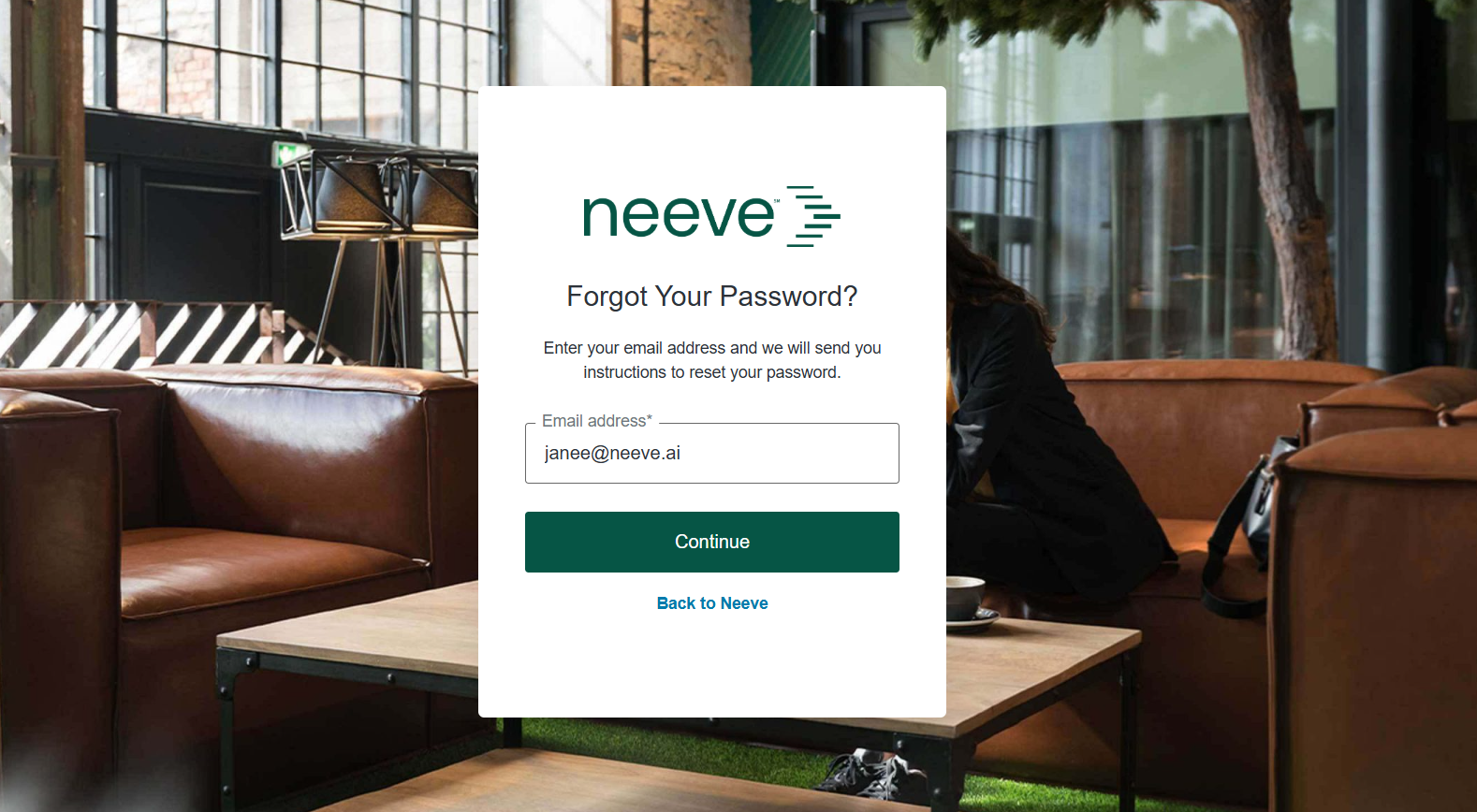
On the login page, select Forgot your Password?
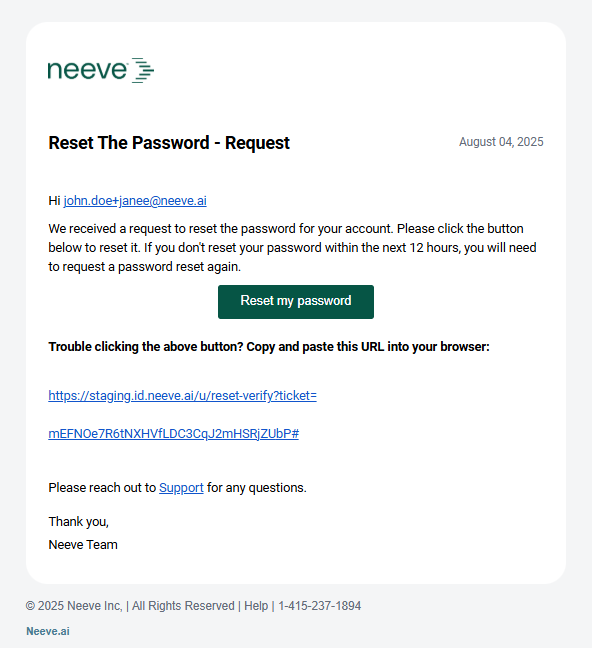
On the reset password page, enter the username or email associated with your Neeve account and select Continue. You’ll receive an email with a reset password link, which is good for 12 hours.
In the email, click Reset My Password to open the password reset page.
Enter your new password, confirm it, and submit. Passwords must include the following:
12-100 characters
At least one uppercase alphabetical character (A-Z)
At least one lowercase alphabetical character (a-z)
At least one number (0-9)
At least one special character (!@#$&*)
You can’t use the same phrase as your email address for your password. In addition, your new password can’t be the same as your last password or similar to your last three passwords.
Once successful, you’ll see a confirmation message. You'll also receive a confirmation email for your records.