This article explains how Admins can add new portfolios and sites, add a nested portfolio, and also move a site between portfolios.
Once you create a new portfolio and assign it to an Admin, that Admin user will inherit administrator permissions for all the sub-portfolios, sites, networks, endpoints, and endpoint connections in that portfolio. You can apply more granular permissions if necessary (for more info, see Hierarchy in Neeve).
Add a new portfolio or site
The following steps explain how to add a new portfolio or site, which includes options for adding a new site at the same time you add a new portfolio, and also nesting a new portfolio under an existing portfolio.
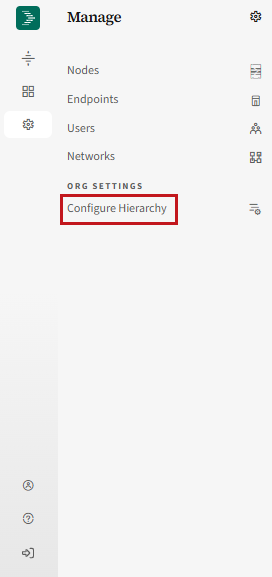
Log in to Neeve, and select Manage (gear icon) > Configure Hierarchy.
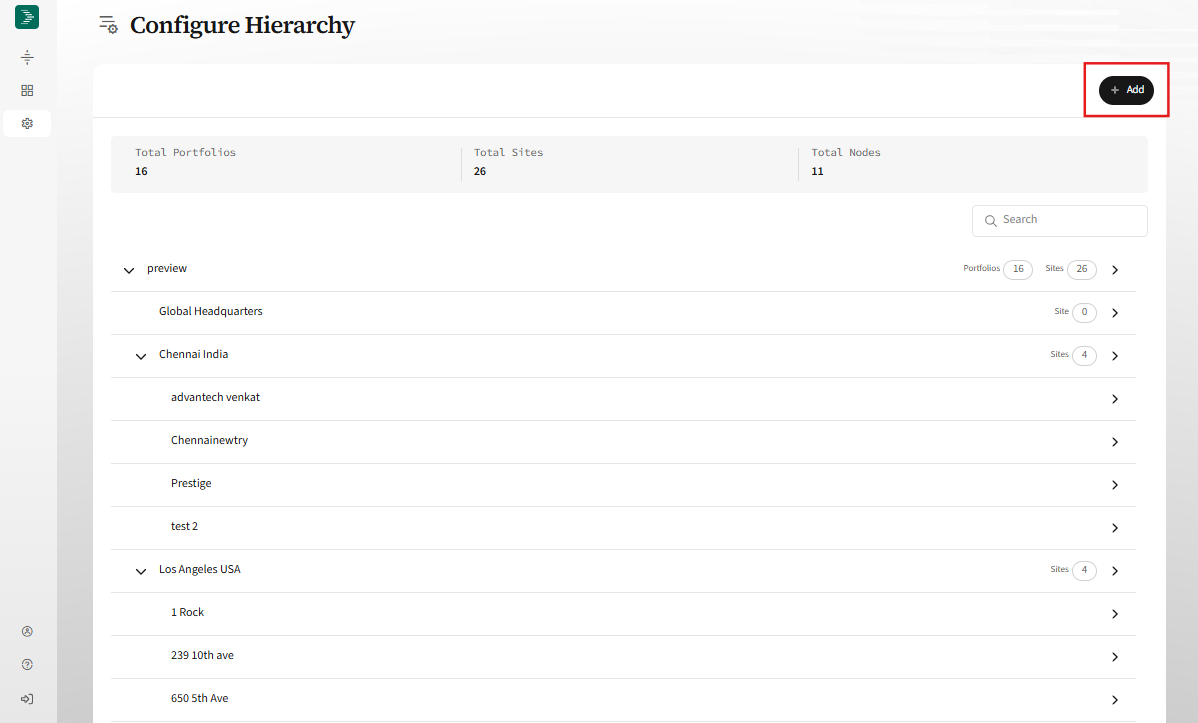
On the Configure Hierarchy page, select + Add.
In the dialog, select the type of hierarchy object to add (Portfolio or Site) and then complete the dialog fields.
You can nest the portfolio under an existing portfolio using the Portfolio Hierarchy Placement field.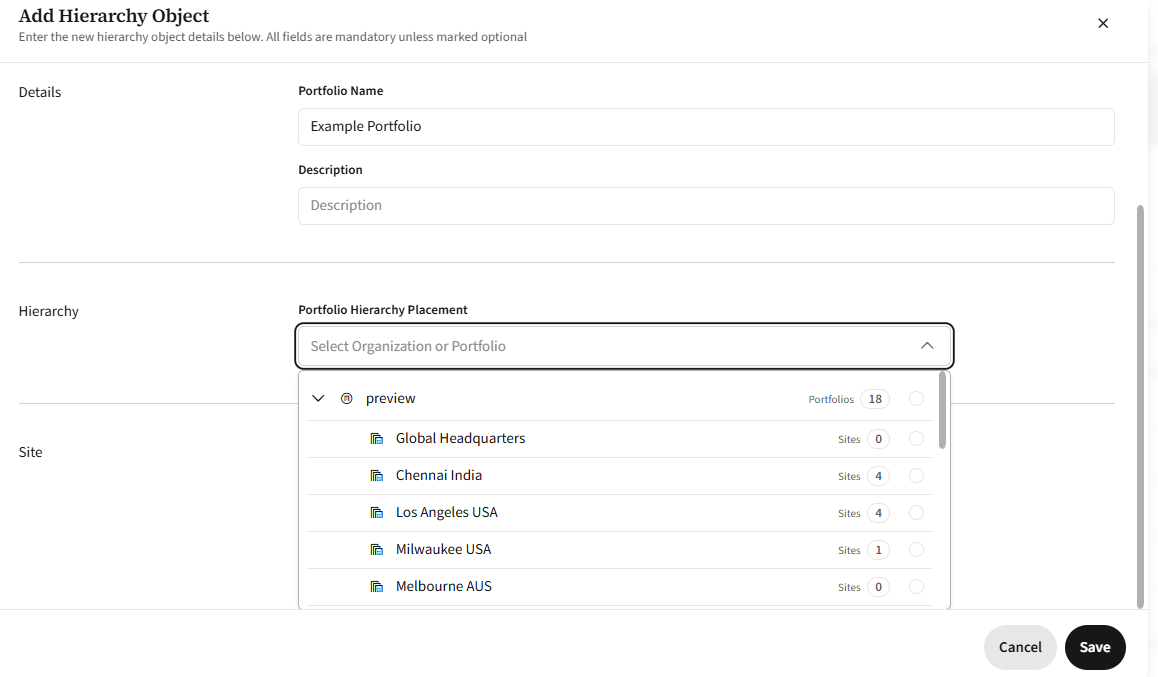 When creating a portfolio, you have the option to add a new site at the same time. Otherwise, when adding a site alone, you must assign it to an existing portfolio. To add a site, you must have the site address.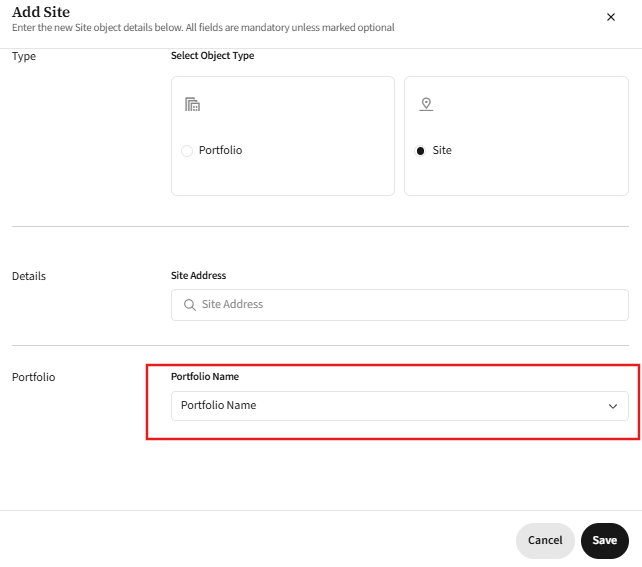
Select Save. Your new object will appear on the Configure Hierarchy page.
To modify your new object, select the arrow icon in the object’s row, and then select Edit. For example, you can now add additional sites to your new portfolio.
Move a site
Use the following steps to move a site and all of its resources from one portfolio to another.
Permissions considerations
To be able to move a site, you must be an Admin user of both the current portfolio and the target portfolio.
Anyone with inherited access to the site and its resources will lose access. This includes the current portfolio Admin user and any portfolio-level Access Only users.
If an Admin or Access Only user has permissions at the site level (or lower), those permissions are retained once the site is moved.
From the Configure Hierarchy page, select the arrow icon in the site’s row.
On the site details page, select Edit.
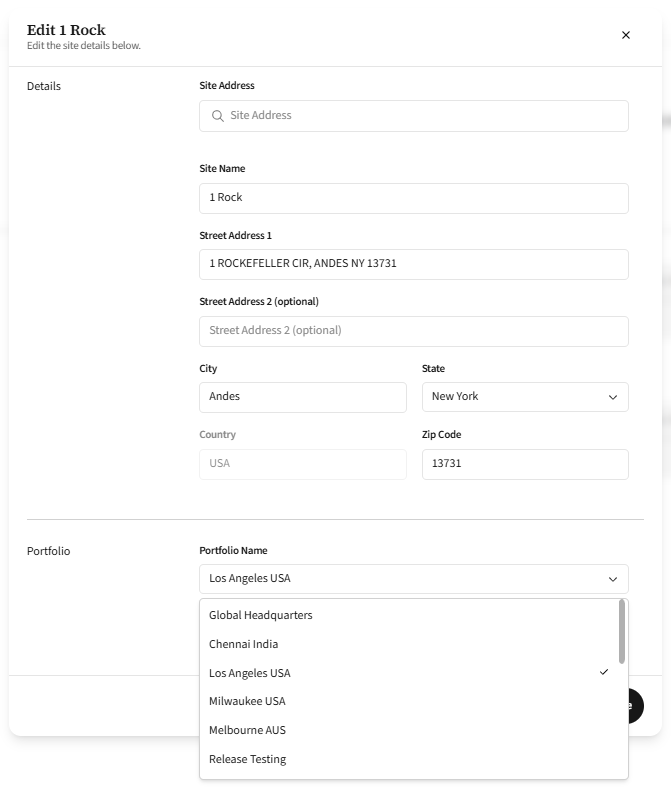
In the Portfolio dropdown field, select the new (target) portfolio for the site, and then select Save.
The site and its resources now belong to the new portfolio, where the new portfolio-level permissions will apply.