This article explains how to onboard Cloud BMS in the Neeve Portal. Our Cloud BMS offering provides a fully managed environment for Tridium Niagara, handling all cloud infrastructure, licensing, and software upgrades. Secure Link Nodes or Edge Nodes enable secure connectivity between the cloud and on-premises environments for remote access to building networks, controllers, and devices.
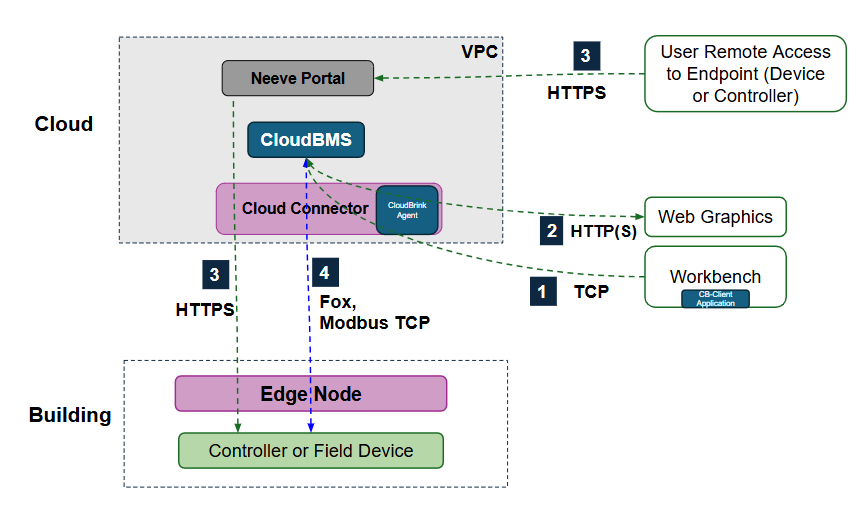
The following diagram gives an architectural overview of the Cloud BMS setup:
Prerequisites
Before beginning setup, confirm the following tasks are completed:
Your Edge Node is powered on and connected to the internet.
Your Edge Node has been onboarded to Neeve and shows an ALIVE status in the Neeve portal.
N4 Supervisor v4.14 or later has been deployed to your Neeve VPC environment.
Your Neeve Technical Account Manager has provided the IP address of the Cloud BMS N4 Supervisor.
You have installed Niagara Workbench 4.14 or later on your laptop/computer.
You have deployed a JACE 9000 or other controller/field device on the edge to communicate with the N4 Supervisor using the Fox protocol.
BACnet device communication
BACnet IP communication between the Cloud BMS N4 Supervisor and on-premises BACnet devices is supported, but you must disable auto-RepNet functionality for your Neeve network and enable BBMD on the N4 Supervisor. (Please contact your Technical Account Manager for guidance and limitations.)
Connect to the N4 Supervisor
Use the following steps to connect to the N4 Supervisor using Workbench, which should be installed on your local machine.
Log in to the Neeve portal.
On the Launcher page, search for “CloudBMS” to filter for applicable devices.
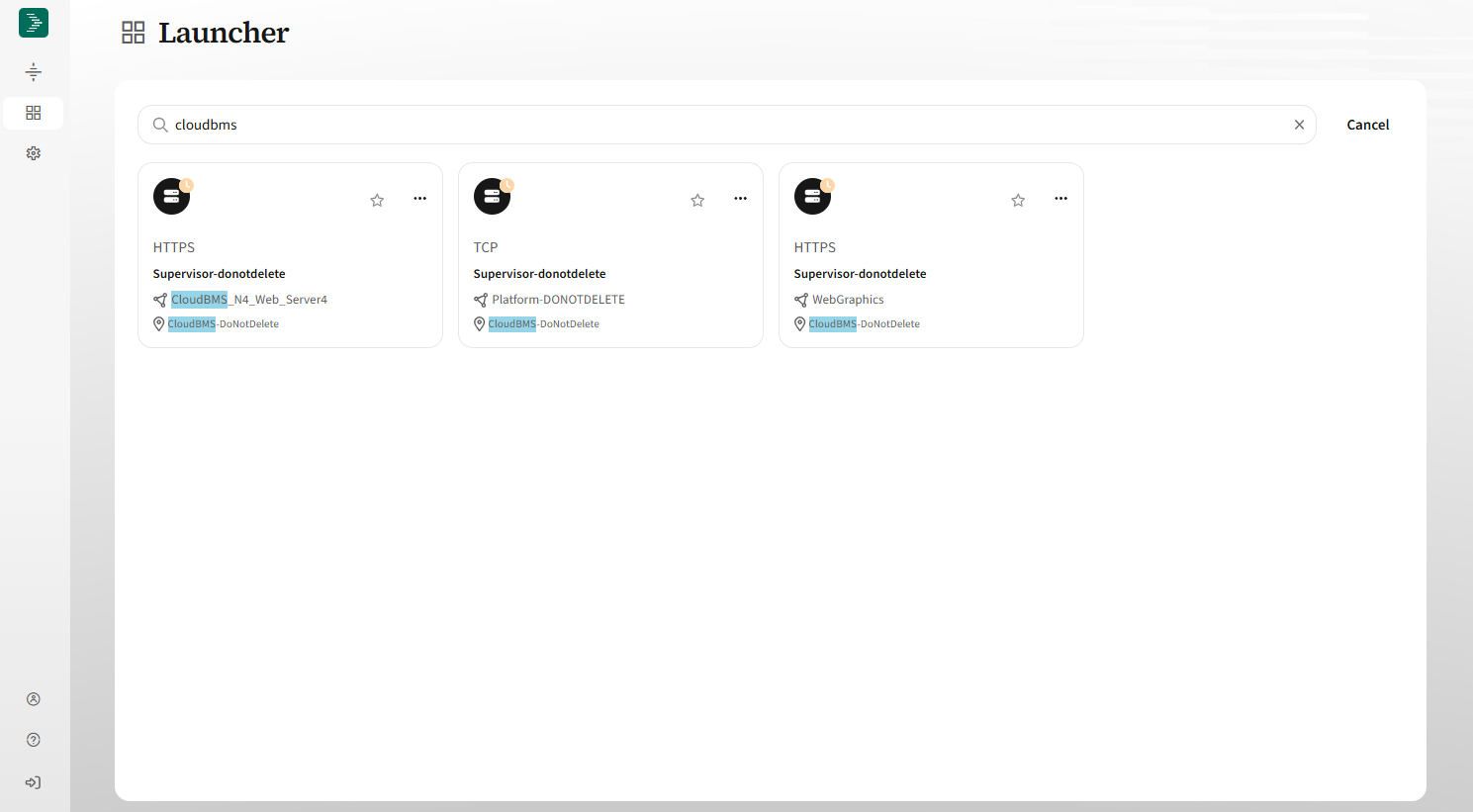
Click on the tile that shows Platform (the center tile in the example above). This opens a dialog prompting you to download and install Remote Access Agent (if not already installed). Note the Device IP and Realm in the agent UI, which you will need to connect to your N4 Supervisor via Workbench.
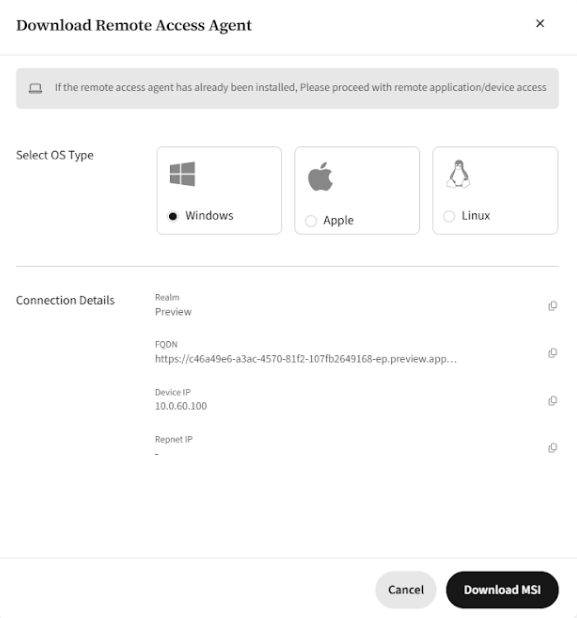
Launch Remote Access Agent and enter your user name (typically the email you use to log in to the Neeve portal) and the realm that you noted in the previous step.

Select Login and then enter your Neeve credentials.
Wait a few moments for the agent to establish the connection. The agent status should show as Running. If you encounter a timeout, you may need to reauthenticate.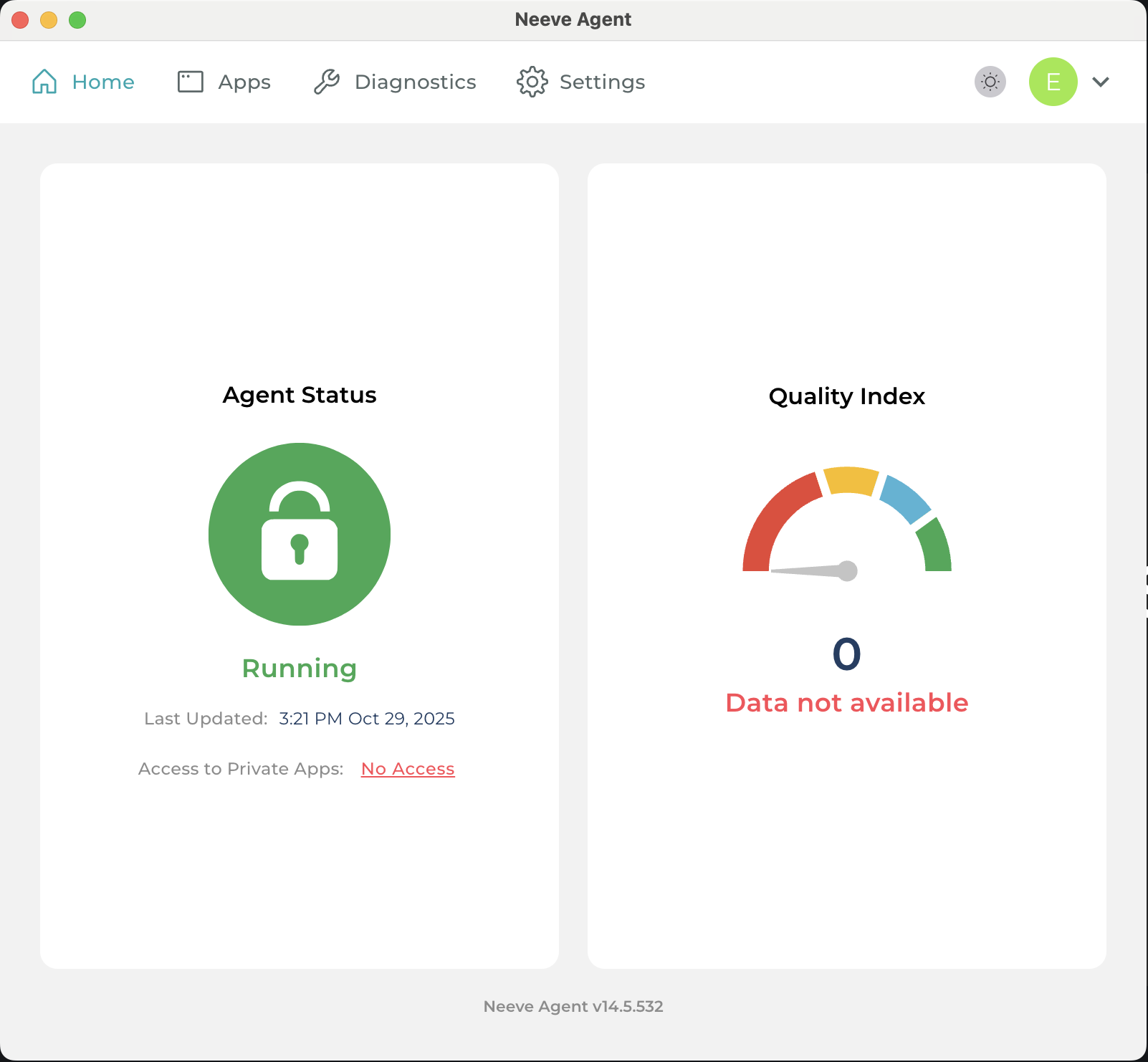
Launch Niagara Workbench and connect to the Cloud BMS N4 Supervisor using the Device IP you noted in Step 3.
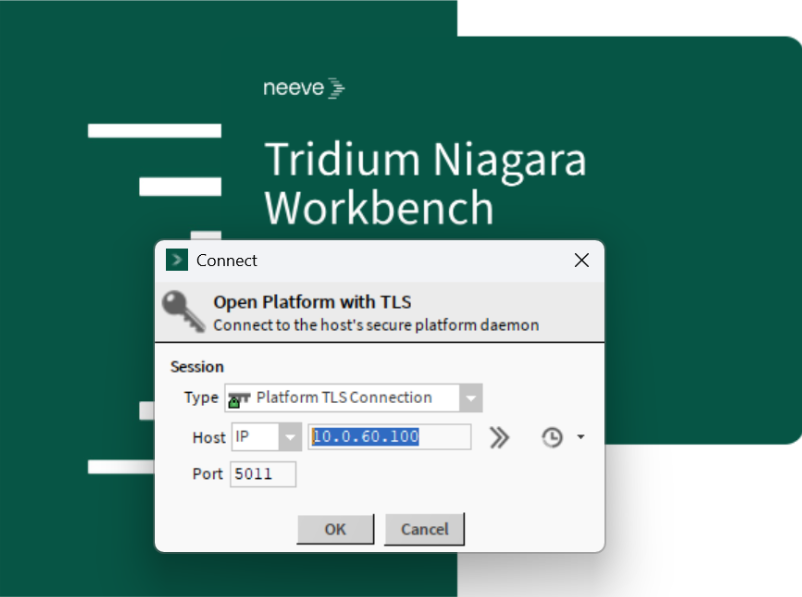
Enter the platform credentials (platform administrator username and password, as well as the system passphrase) for the Cloud BMS N4 Supervisor Platform. These will have been provided to you by Neeve.
IMPORTANT
Make sure that you change the password for the administrator account and change the system passphrase after you log in. The instructions to do this are below. Save these credentials somewhere safe and secure.

If you have not yet updated your Workbench credentials or passphrase, complete the following steps. Otherwise, continue to the next procedure, Add a connection to your Cloud BMS web portal.
From the Platform connection left menu, select Platform Administration, and then select Update Authentication.
In the Authentication dialogue, update the platform administrator User Name and Password. Save these credentials in a secure location.

Return to the Platform Administration menu, and then select System Passphrase.
In the Set System Passphrase dialogue, set the new system passphrase. Make sure to save the new passphrase in a secure location.

Add a connection to your Cloud BMS web portal
These steps assume you have already configured your station on the Cloud BMS N4 Supervisor.
Log in to Neeve and select Manage (gear icon) > Endpoints.
.png)
2. On the Endpoints page, search for “CloudBMS” and then select the arrow on the right of the device row to open its details page.
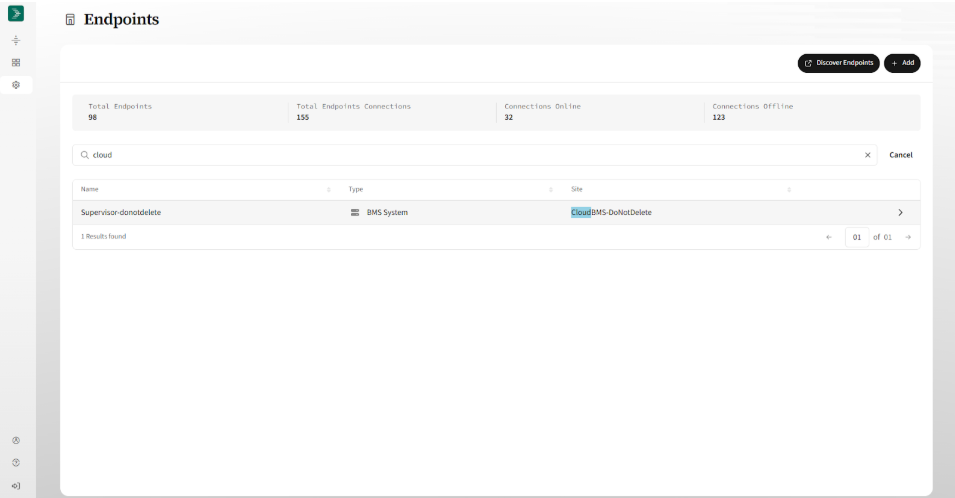
Select the Endpoint Connections tab, and then select Add Connection on the top right to open the Add Endpoint Connections dialog.
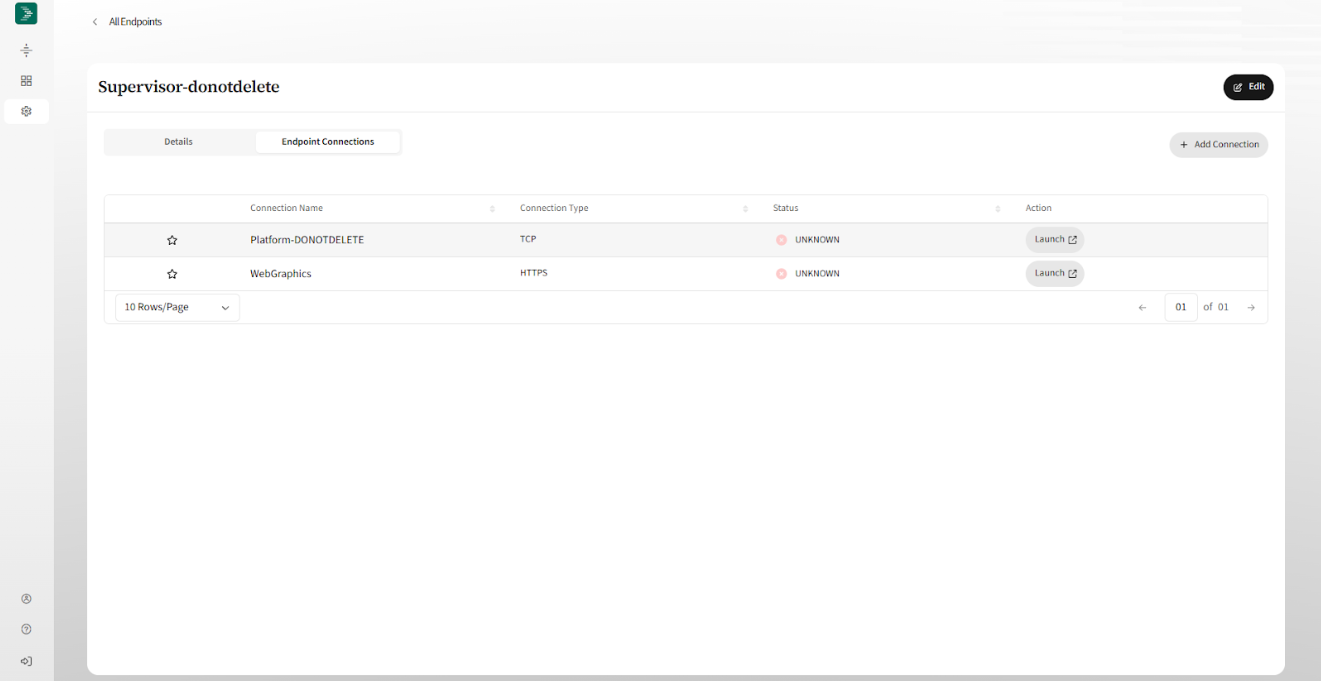
In the Type dropdown field, select the access application type. By default N4 Stations run the web service over HTTPS.
Enter a name for the connection, and set the port that the web service is running on (valid range: 1-65535).
By default, N4 Stations allocate the standard HTTPS port of 443, but you can configure the station to run on a different port.
Select Add button to add the endpoint connection.
Frequently asked questions
Q: Does Niagara network discovery scan all the JACE networks in the building through the secure edge tunnel from the Cloud BMS N4 Supervisor?
A: Niagara network uses FOX protocol for communication between stations, which uses TCP. So, you need to manually enter the JACE station IP address (use RepNet IP) as TCP cannot cross subnets.
Q: How do I know the network tunnel between a JACE and Cloud BMS N4 Supervisor station is connected?
A: Log in to the Neeve portal and select Manage (gear icon) > Networks, then confirm that the remote network connection status is CONNECTED.
Q: Are there ways to perform a ping command from Cloud BMS N4 Supervisor?
A: Yes. Add a JACE station under the Niagara network in Supervisor, then right-click the station and under the Action menu, select the ping command.
Q: How can I verify that my Workbench and Cloud BMS N4 Supervisor is communicating?
A: Open Remote Access Agent on your PC/Laptop system tray, click on the apps, and then look for the connected Supervisor name IP address and port (5011 or 4911) sending and receiving packets.
Q: Does Cloud BMS N4 Supervisor communicate with Modbus IP devices?
A: Yes, you can add a Modbus device using its RepNet IP address.
Q: Does Cloud BMS N4 Supervisor perform a BACnet discovery of on-prem BACnet/IP devices?
A: Yes, but you need to disable the RepNet IP address and instead use the native IP address and configure the supervisor as BBMD or foreign device. Contact support@neeve.ai to enable additional configurations in the cloud.