This article explains how to set up an Edge Node as the DHCP server for a System Network, how to reserve IP addresses for specific devices, and how to view active leases.
When you configure a System Network with the DHCP Server address type, the node assigns IP addresses to the devices on that network. The DHCP service is deployed automatically as part of network creation — you do not need to deploy a service separately.
Before you begin
- Use DHCP Server only if nothing else on the network is already assigning addresses. Two DHCP servers on the same network will conflict.
- The network requires a subnet of /24 or larger.
- The network address type cannot be changed after the network is created. To use a different type, delete the network and create a new one.
- Only one regular (untagged) network is allowed per physical network interface. To add more than one network to an interface, configure a VLAN ID.
Add a DHCP Server network
To add a DHCP Server network to a node:
- Log in to Neeve and select Manage (gear icon) > Nodes.
- Select the arrow icon (>) in the row of the node you want to configure, and then select the System Networks tab.
- Select + Add.
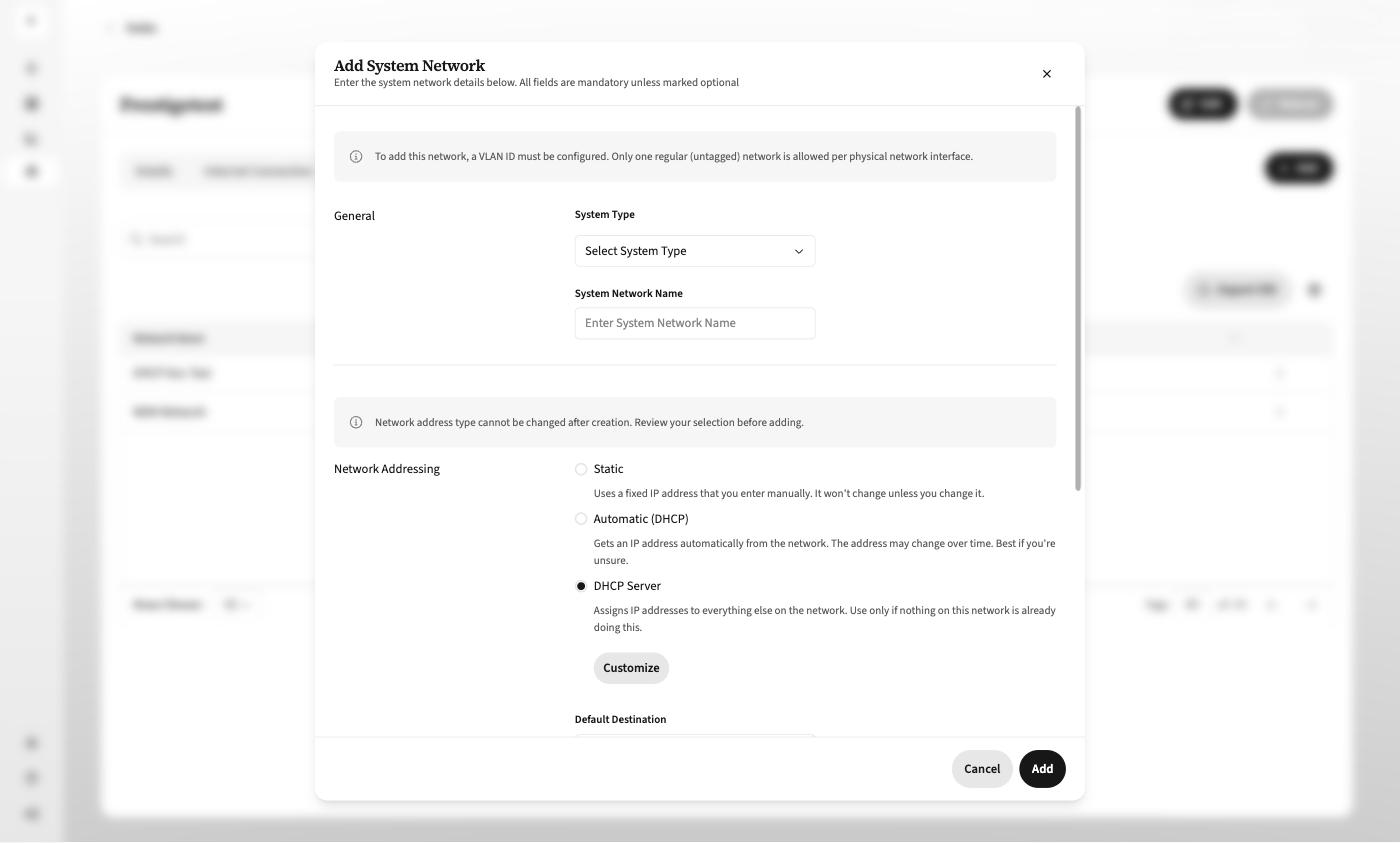
- In the Add System Network dialog, select the System Type for the network (for example, BMS System or Access Control) and enter a System Network Name.
- Select the Interface for the network. If the interface already has a regular (untagged) network, enable Show Advanced Options and supply a VLAN ID.
- Under Network Addressing, select DHCP Server.
- Select Customize to configure the address pool, lease time, and reservations, as explained in the next section. If you do not customize, the network is created with the default pool and a 24-hour lease.
- Set the Default Destination for the network. This determines where traffic without a more specific route is sent, and also determines which upstream DNS resolver the node uses for this network. See DNS resolution on a DHCP Server network below.
- Select Add.
Customize the DHCP pool
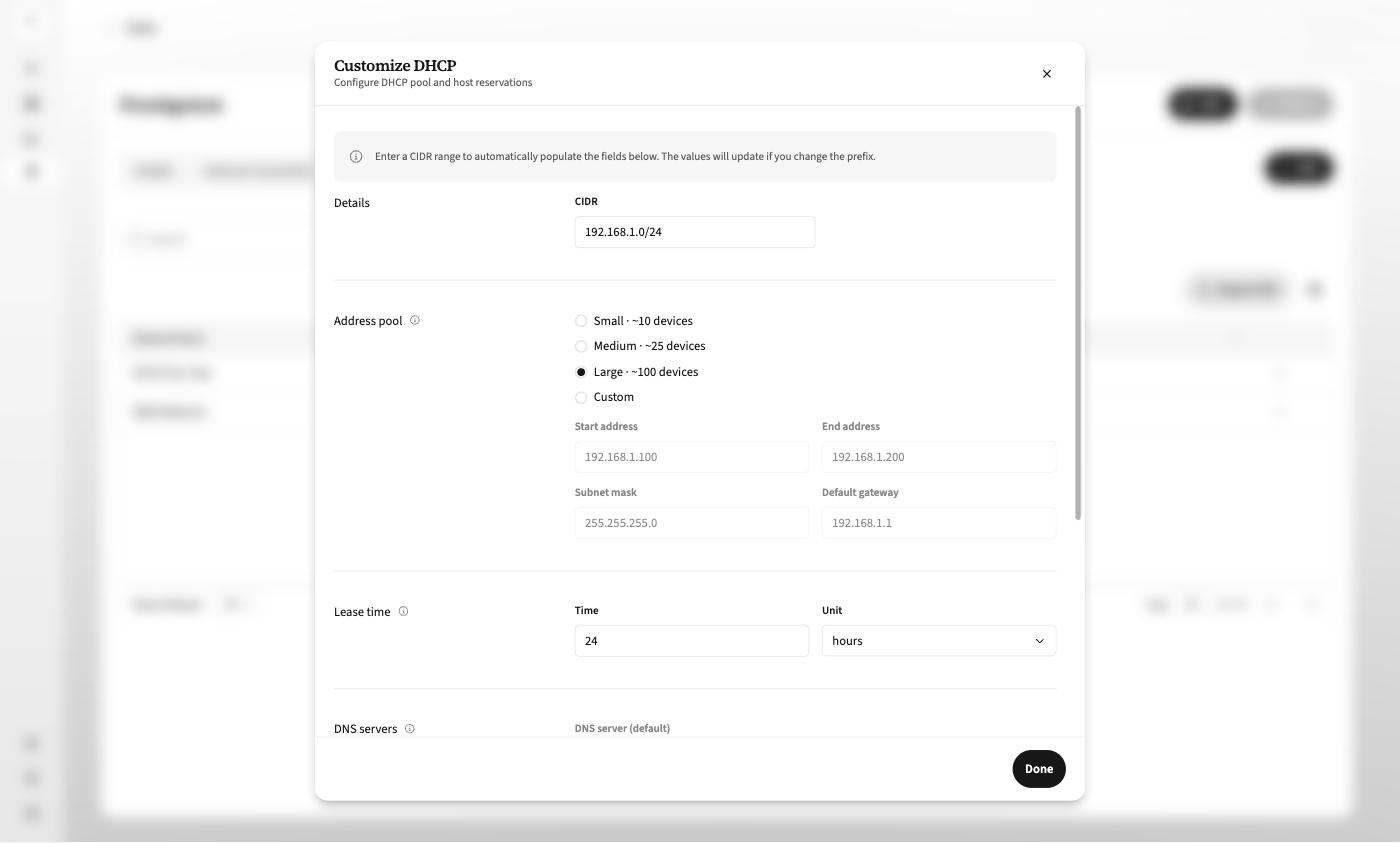
In the Customize DHCP dialog, configure the addresses the node hands out.
- In CIDR, enter the network range (for example, 192.168.1.0/24). The remaining fields populate automatically from this value and update if you change the prefix.
- Under Address pool, select a preset or define your own:
- Small — approximately 10 devices
- Medium — approximately 25 devices
- Large — approximately 100 devices
- Custom — set the Start address and End address yourself
- Under Lease time, set the Time and Unit (the default is 24 hours). This is how long a device keeps an assigned address before it must renew.
- Under DNS servers, review the DNS server (default) value. The Edge Node IP is used as the DNS server for devices on this network.
- Under NTP servers, toggle Specify custom NTP servers on if devices on this network should use NTP servers other than the node's.
- Select Done.
The Subnet mask and Default gateway populate from the CIDR. The pool must contain at least one address; setting the start and end address to the same value is not valid.
Reserve an IP address for a device
A reservation pins a device to a specific IP address by its MAC address. The device receives that address every time it requests one, including after a lease expires or the node restarts. Reservations are stored for devices that are not currently connected, and are applied when the device first appears on the network.
[!NOTE]
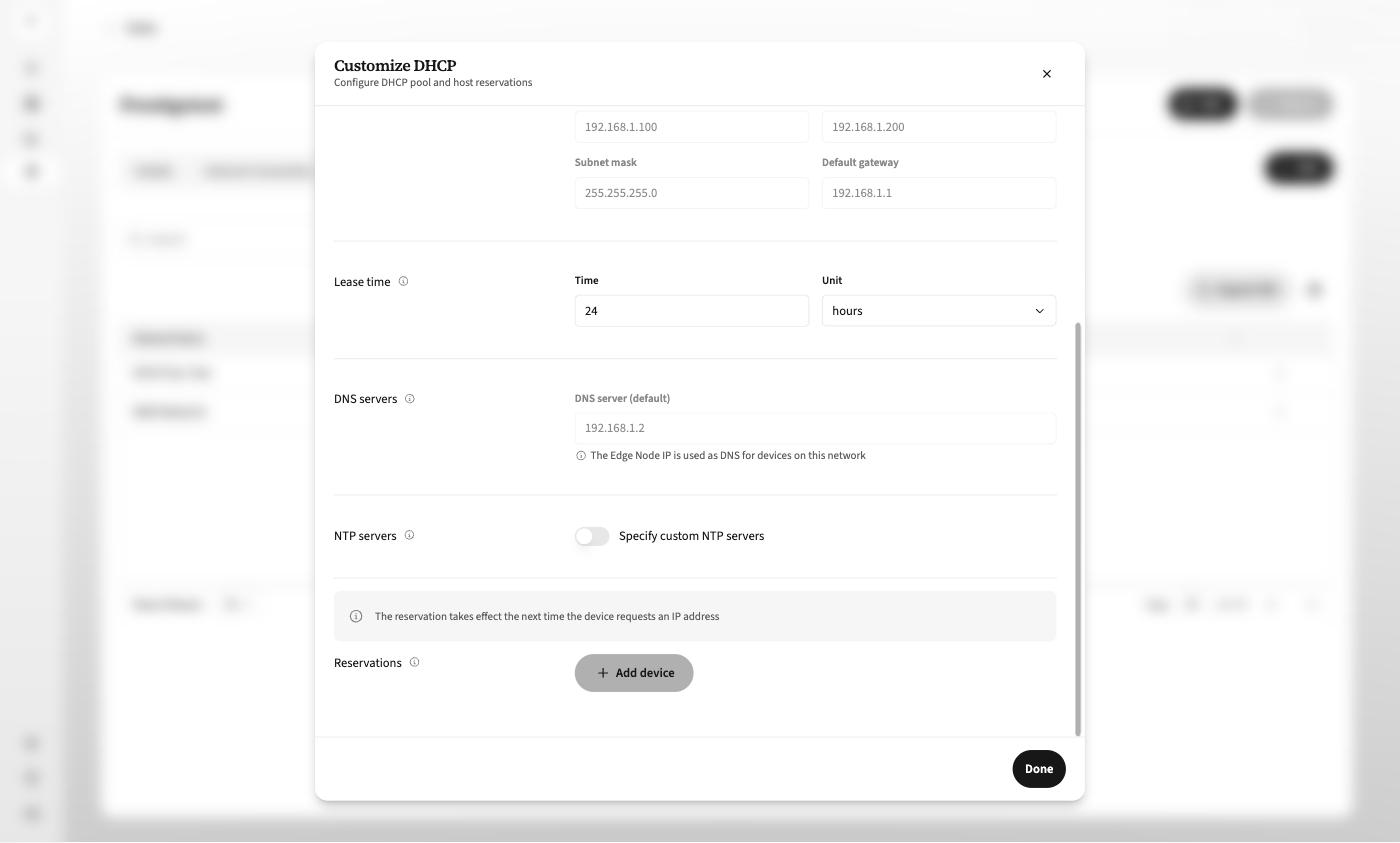
A reservation takes effect the next time the device requests an IP address. A device holding a current lease keeps its existing address until that lease renews.
To add a reservation:
- Open the Customize DHCP dialog, either while adding the network or by selecting Edit on an existing DHCP Server network and then selecting Customize.
- Scroll to Reservations and select + Add device.
- Enter the Device name, the MAC Address, and the IP Address to reserve.
- To add more reservations, select + Add device again. To remove a reservation, select the delete (trash) icon on its row.
- Select Done, and then save the network.
Note the following when entering reservations:
- The MAC address must be unique on the network. Attempting to reserve a MAC address that already has a reservation returns an error and leaves the original reservation in place.
- The IP address must fall inside the configured address pool. An address outside the pool is rejected.
- Invalid MAC formats are rejected inline as you type.
View DHCP settings and active leases
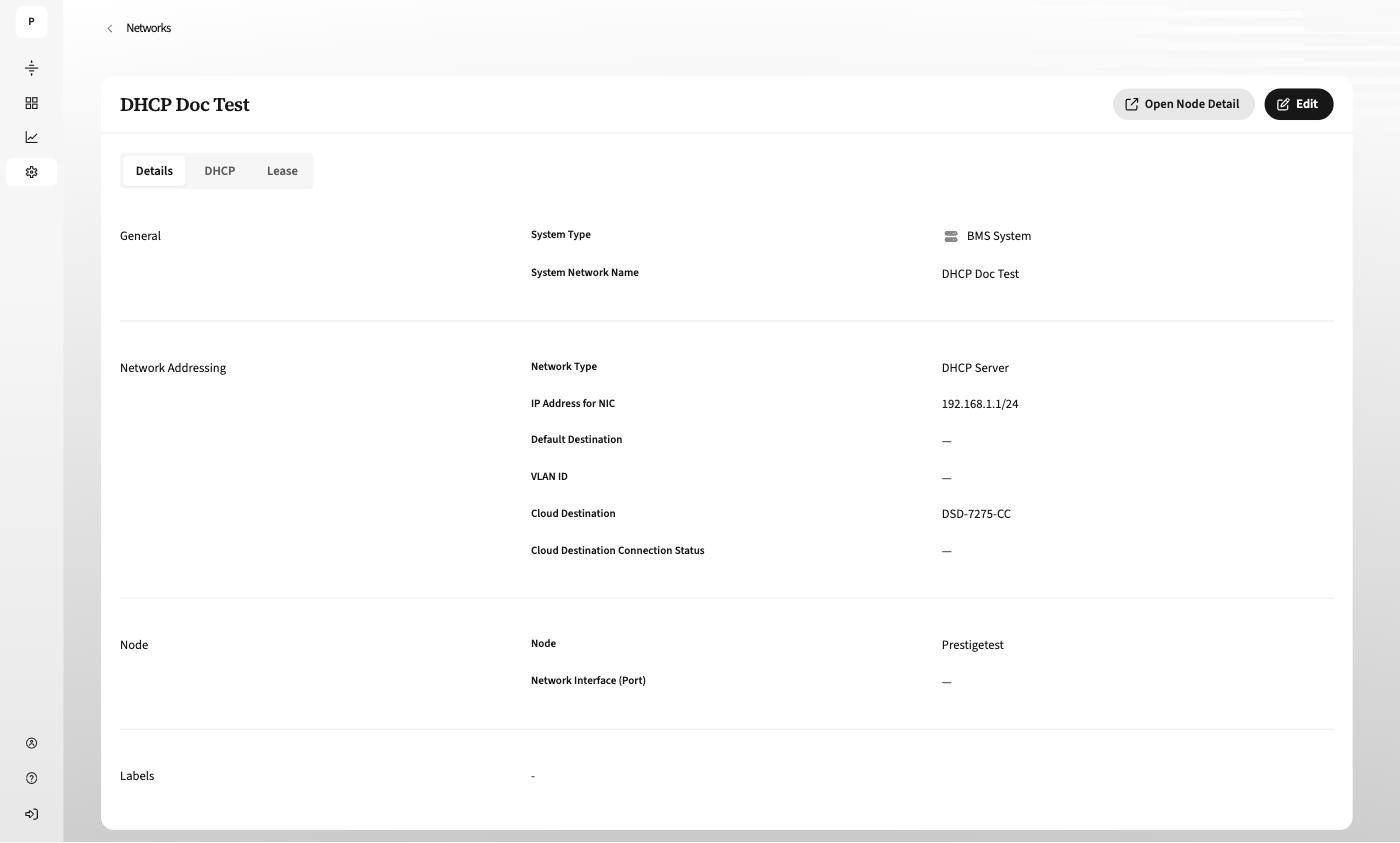
Once a DHCP Server network exists, its details page has three tabs: Details, DHCP, and Lease.
To view them, select Manage (gear icon) > Networks, and then select the arrow icon (>) in the row of the DHCP network.
Details tab
Shows the network's general configuration. Network Type reads DHCP Server, and IP Address for NIC shows the node's own address on this network.
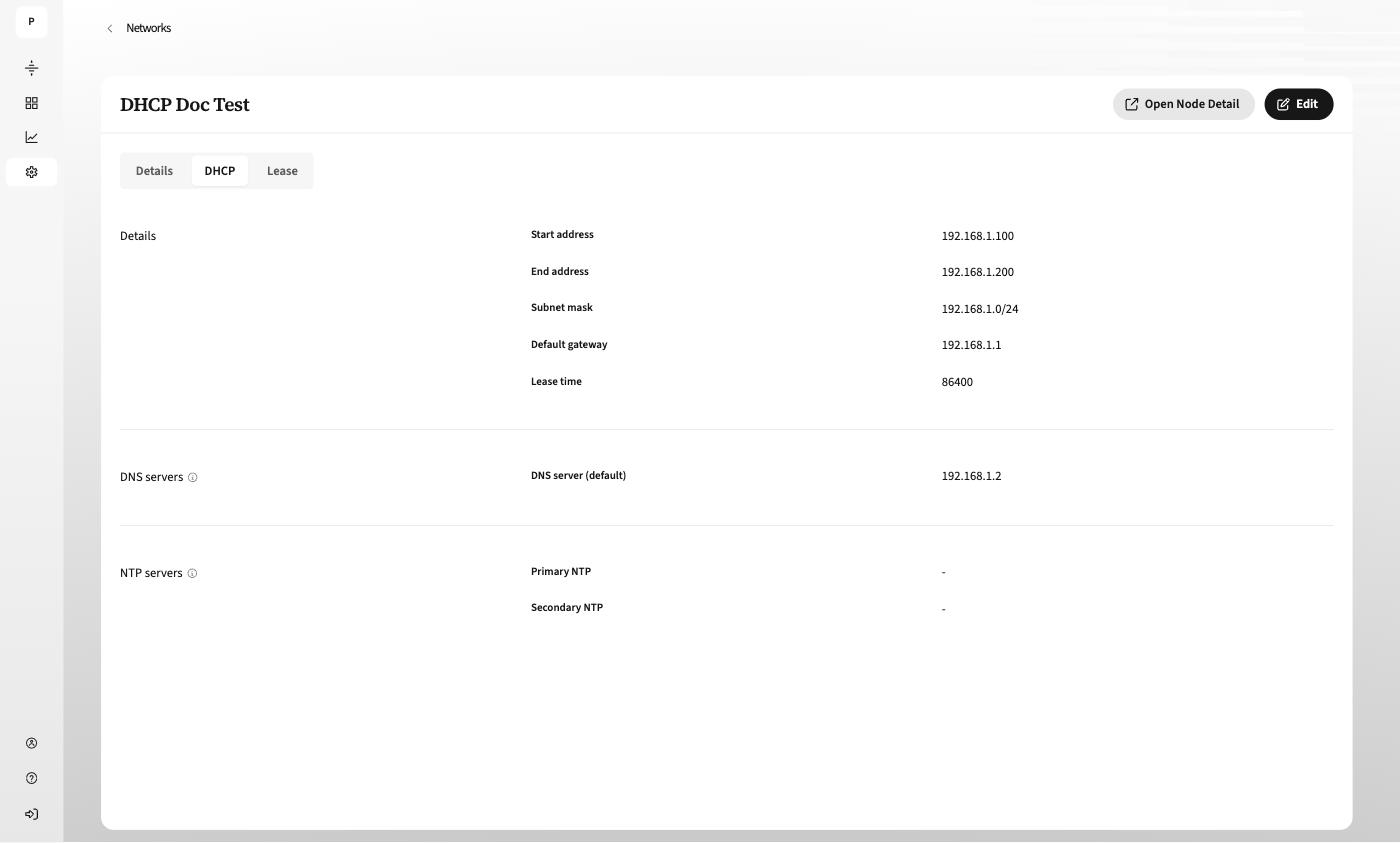
DHCP tab
Shows the deployed DHCP configuration: the Start address and End address of the pool, the Subnet mask, the Default gateway, the Lease time in seconds, the DNS server (default), and any configured Primary NTP and Secondary NTP servers.
Lease tab
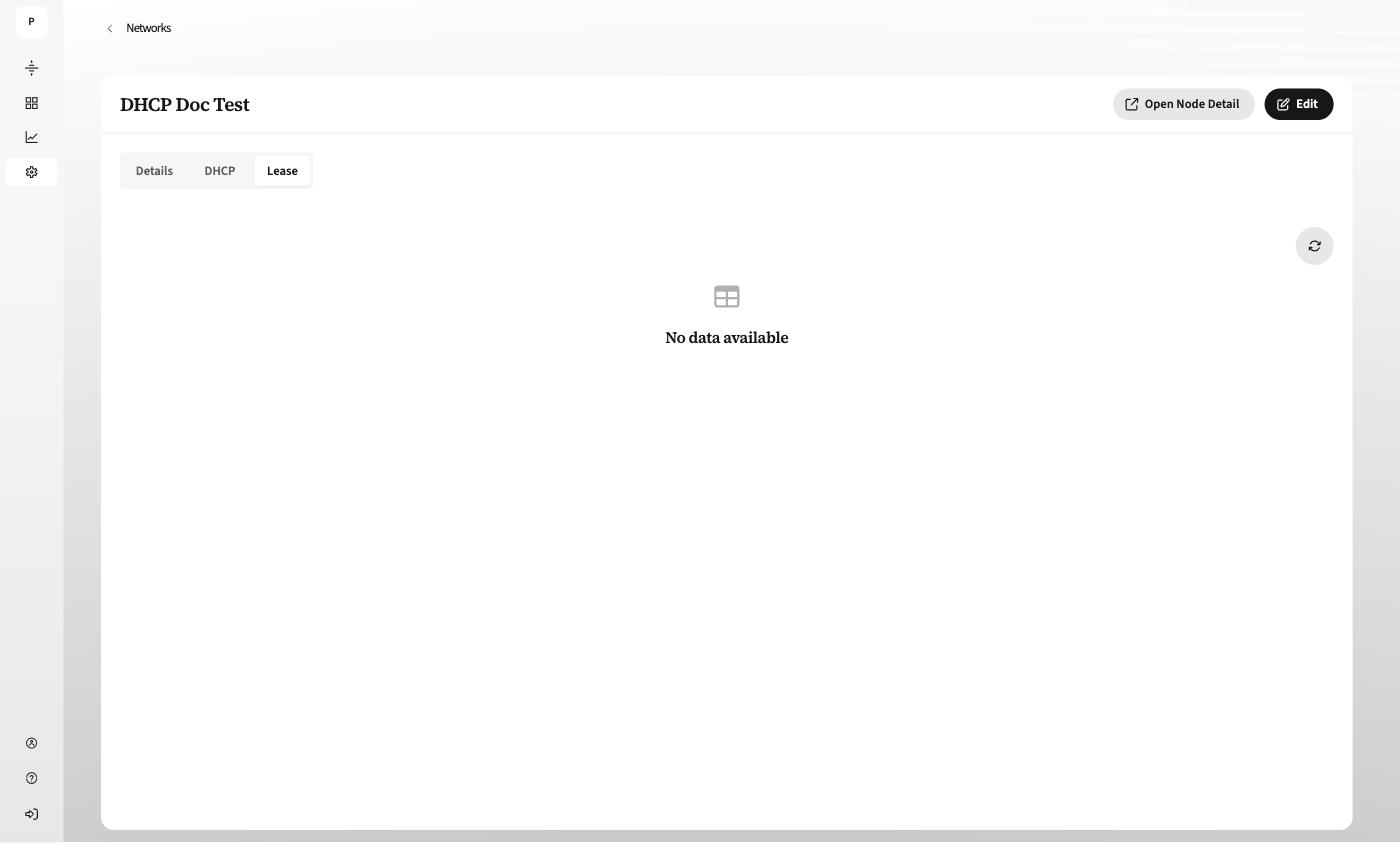
Lists the addresses currently assigned by this network, along with the device hostnames and the time the lease data was last retrieved. Select the refresh icon in the top right to retrieve current lease data.
If no devices have requested an address yet, the tab shows No data available.
DNS resolution on a DHCP Server network
The DHCP service on the node also acts as the DNS server for devices on the network. Queries it cannot answer locally are forwarded to an upstream resolver, which is determined by the network's Default Destination:
| Default Destination | Upstream DNS resolver |
|---|---|
| WAN Network | The DNS server configured for the node |
| Tunnel | 8.8.8.8 |
Change the CIDR of an existing network
You can edit the CIDR of a DHCP Server network after creation. When you do, the address pool, subnet mask, and gateway recalculate from the new prefix, and devices receive addresses from the new range on their next DHCP request. Host reservations are retained.
[!WARNING]
If the network has TCP connections enabled, changing the CIDR stops those connections from working. To restore them, disable Remote Access Agent (RAA) on the network and then enable it again — this rebuilds the routes.
Known limitations
- Setting the address pool start and end to the same value does not show an inline error. A toast message appears when you attempt to create the network.
- Entering a subnet smaller than /24 does not show an inline error. The save is blocked, but the message appears only on save.
- The network address type cannot be changed after creation.