The endpoints you manage are shown in the Launcher and on the Endpoints page of the Neeve Portal. Once endpoints are added to Neeve, you can make the following changes:
Change endpoint characteristics including name, description, and IP address.
Modify endpoint connections.
Modify user access to endpoints, based on their user profile. Note that users must have both endpoint and Neeve credentials.
Delete endpoints and endpoint connections.
The sections below explain these tasks in more detail.
Review endpoint properties
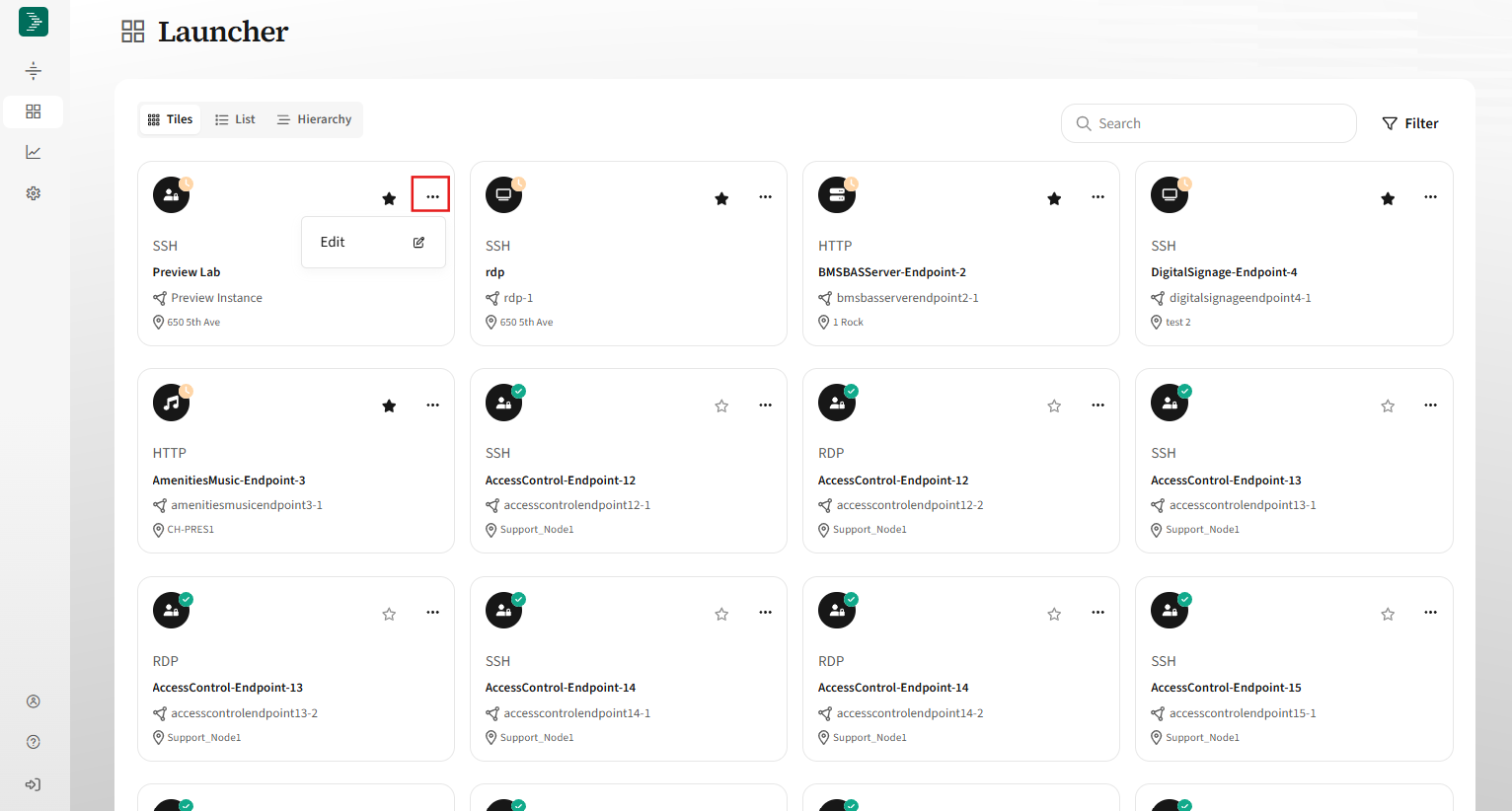
To review details and connections for an individual endpoint in the Launcher, select the three-dot (Edit) menu on an endpoint tile.
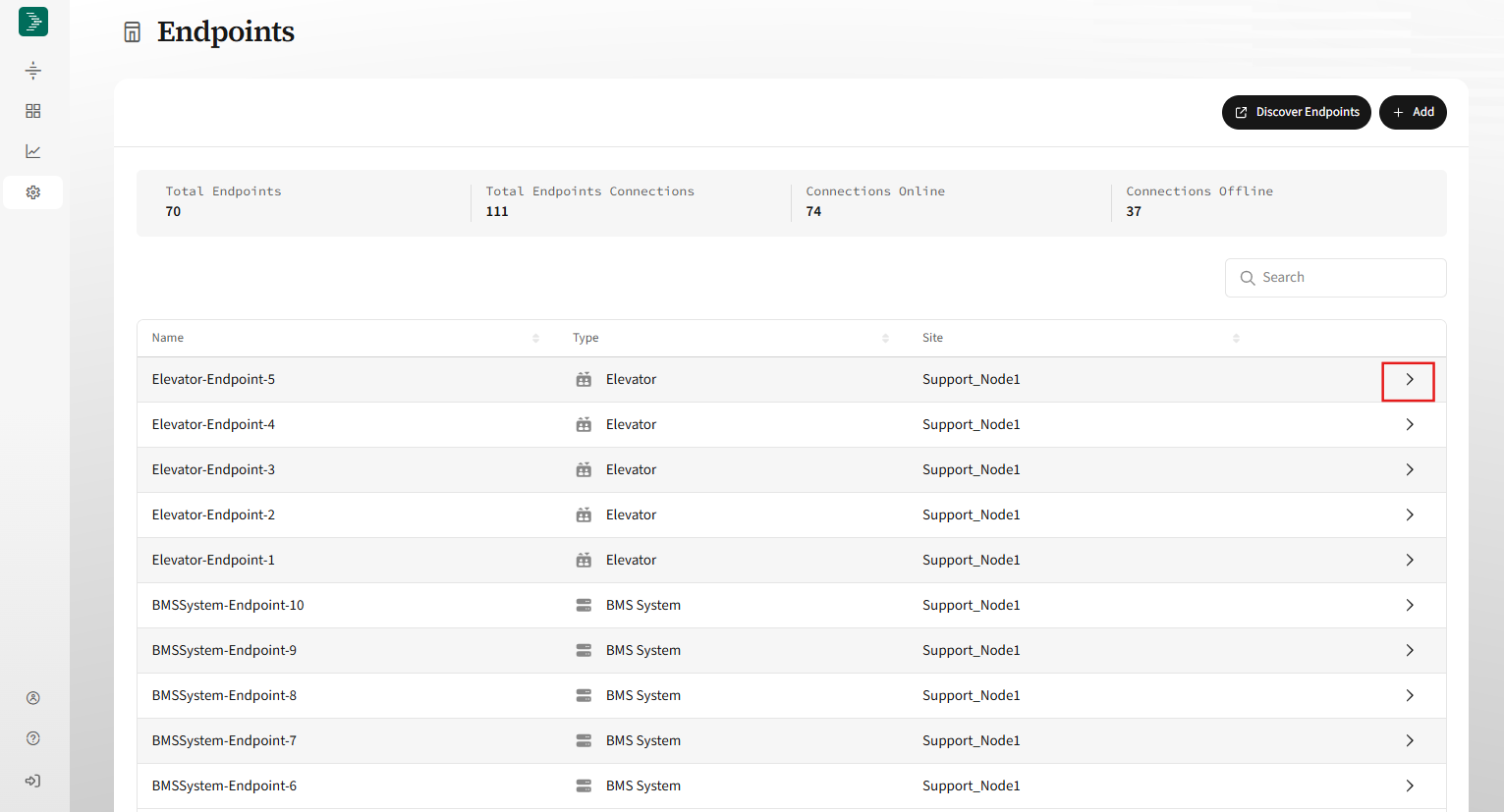
The Endpoints page lists all configured endpoints. To learn how to modify the table columns and values, see Customizing tables. Select the arrow icon in the endpoint's row to open its details page.
Modify endpoint characteristics
To change endpoint characteristics:
On the endpoint details page, select Edit.
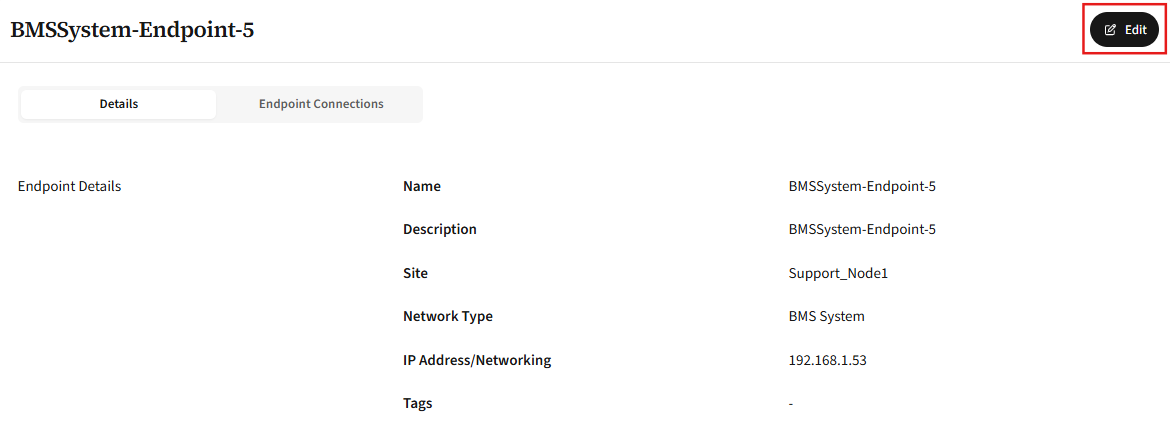
In the Edit Endpoint dialog, edit the endpoint name, description, and IP address as needed.
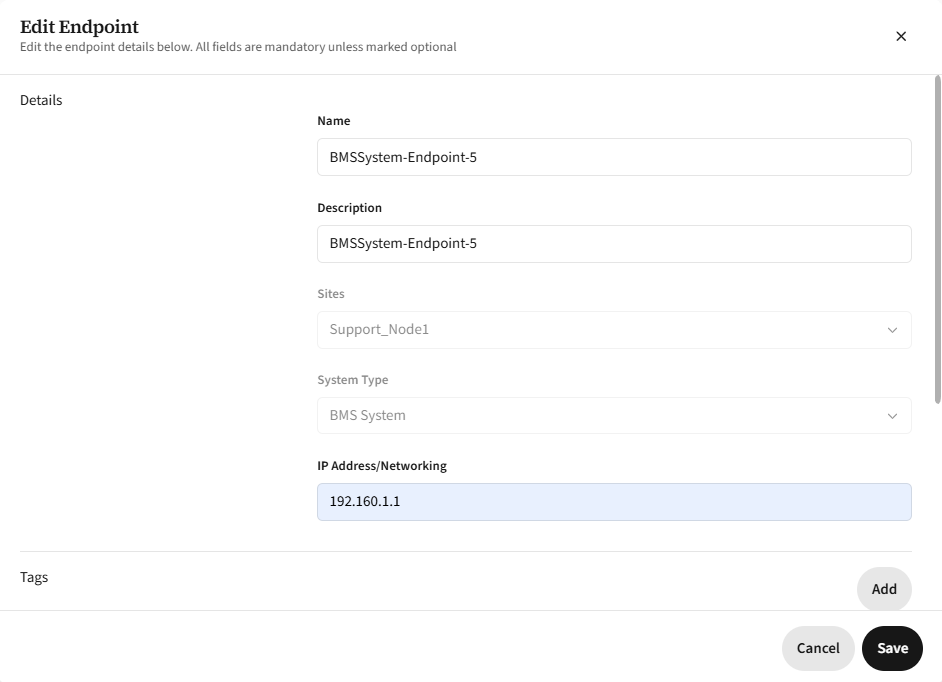
When finished, select Save.
Modify endpoint connections
To update an endpoint’s connection endpoints:
On the endpoint details page, select Edit.
In the Edit Endpoint dialog, scroll to the Connection(s) section.
To add a new connection, select + Add Connection. To edit an existing connection, select the three-dots and then click Edit.
For detailed instructions, see Add a new endpoint.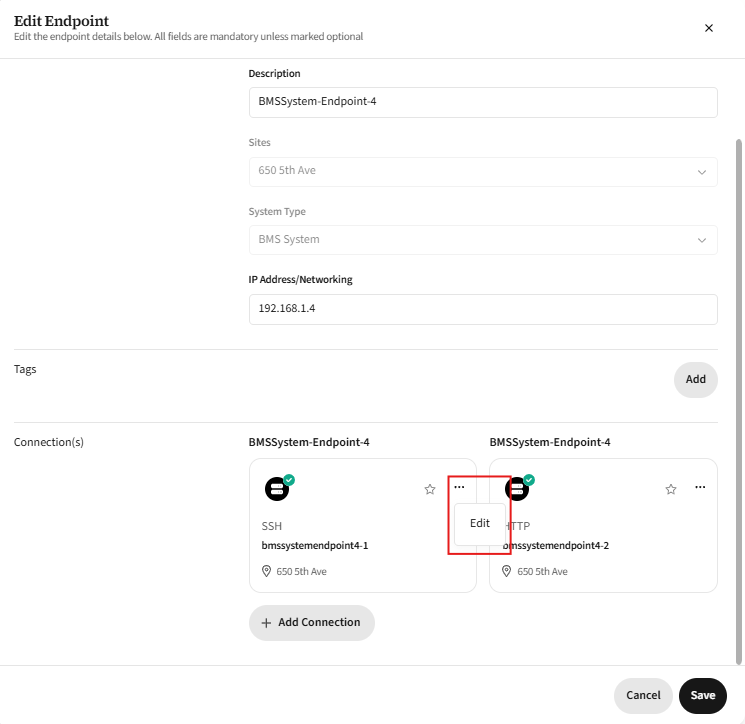
Select Save to apply the updated connections.
Modify access to an endpoint
Access to endpoints is granted at the user level. To give a user access to an endpoint, edit their user profile and add a new set of permissions, as explained in Adding and modifying users.
Delete an endpoint or endpoint connection
You can delete an endpoint or its connections from the Edit Endpoint dialog.
Note
Deleting an endpoint will automatically delete all of its associated connections.
To delete the endpoint, select Delete Endpoint.
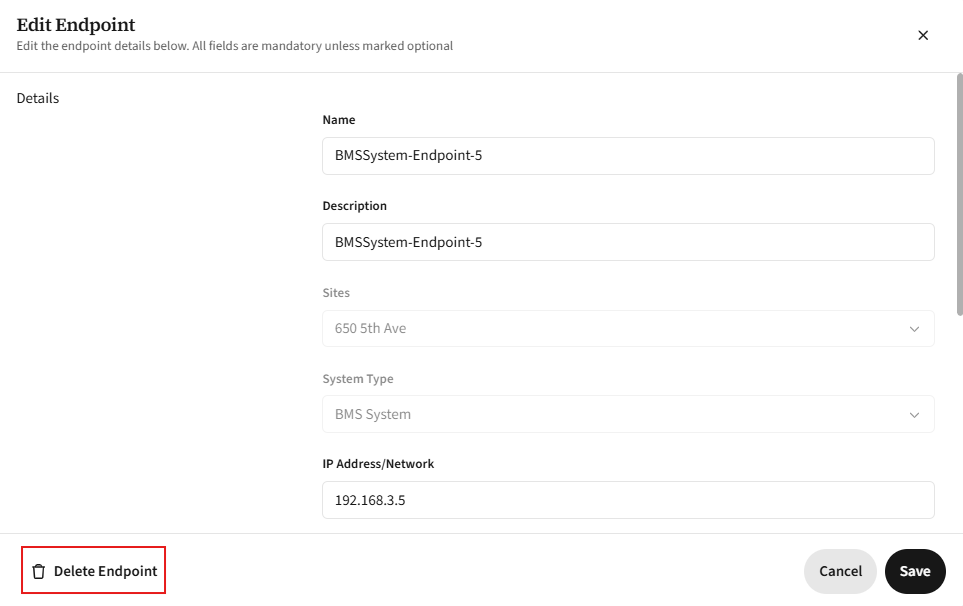
Then, in the confirmation dialog, select Delete to confirm the action.
.png)
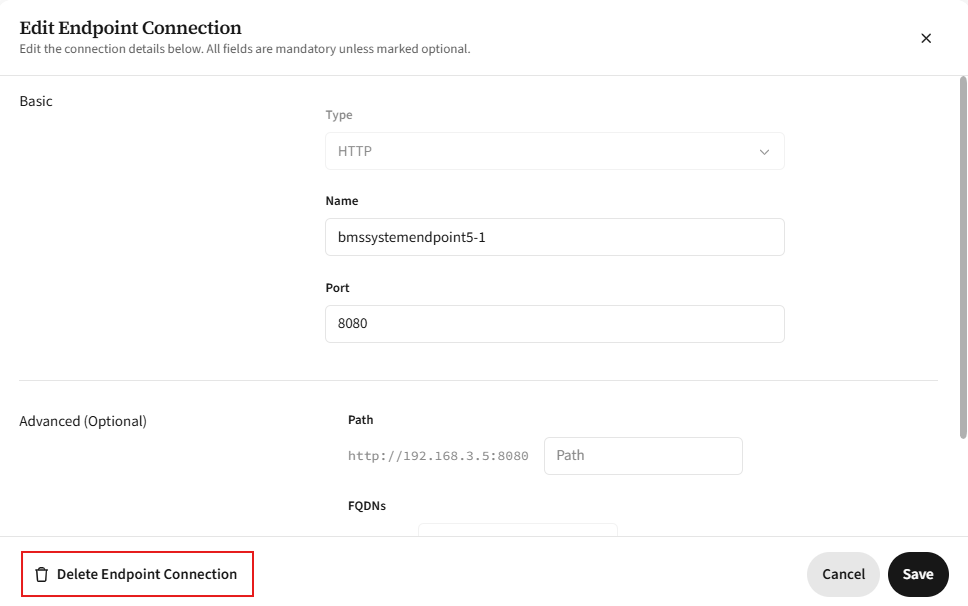
To delete an endpoint connection, scroll to the Connections section. Select the three-dots on the connection tile and then click Delete.
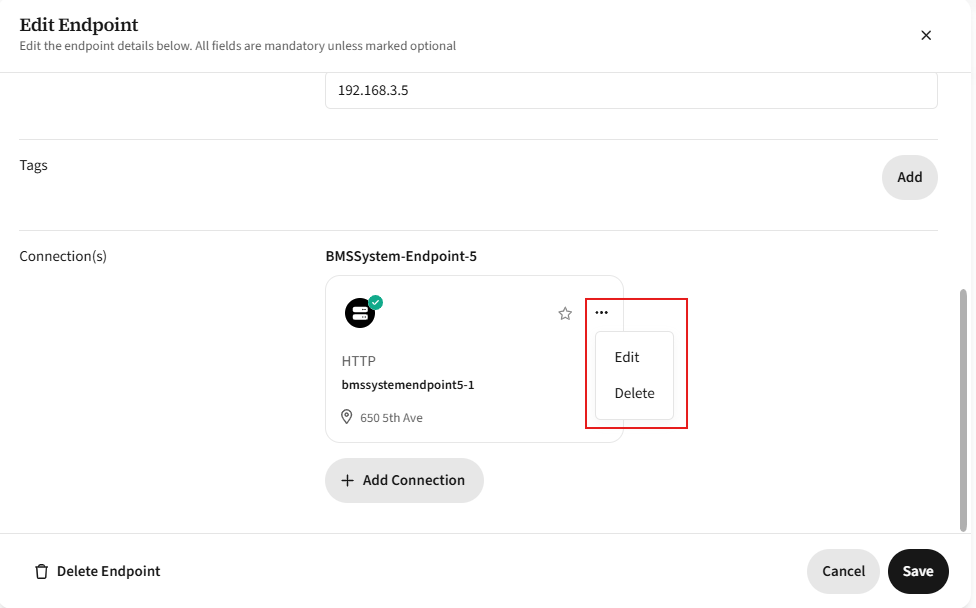 Alternately you can select Edit to first review the connection details, and then select Delete Endpoint Connection.